Understand the problem before the repair.
Twenty detailed guides help Tampa Bay Mac owners protect data, avoid unsafe steps and recognize when professional diagnosis is the smarter next move.
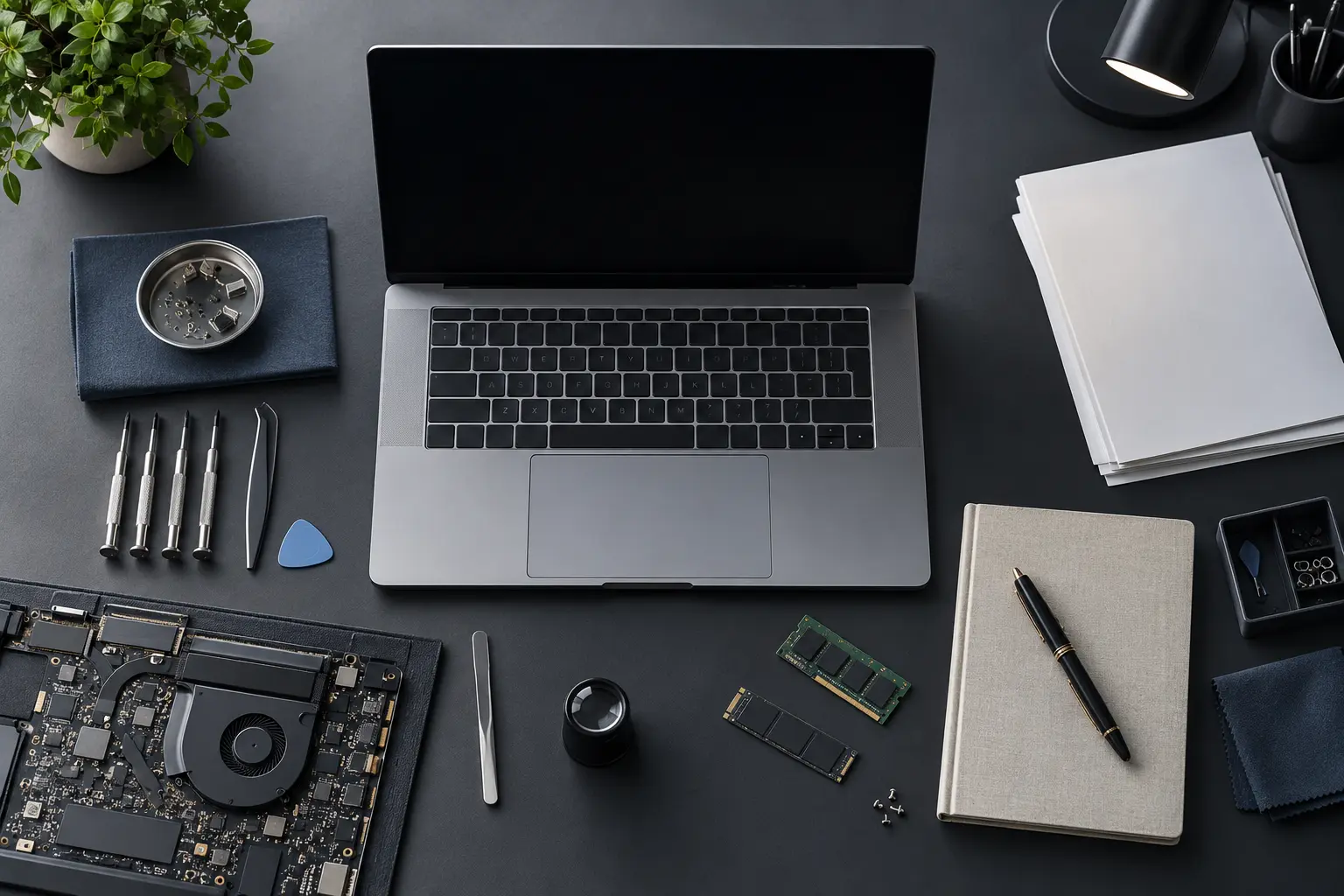
MacBook troubleshooting and care.
MacBook Won’t Turn On? A Safe Diagnostic Guide
Learn what a black screen, no charging response and startup sounds can tell you before repair.
Read the guide →MacBook guideSpilled Liquid on a MacBook? What to Do First
The first minutes after a spill matter. Follow steps that reduce electrical and corrosion damage.
Read the guide →MacBook guideMacBook Battery “Service Recommended”: What It Means
Understand battery health warnings, swelling symptoms and when replacement becomes urgent.
Read the guide →MacBook guideMacBook Not Charging: USB-C and MagSafe Checks
Use a safe sequence to separate cable, adapter, port, battery and logic-board charging problems.
Read the guide →MacBook guideMacBook Screen Lines, Flicker or Black Display
Learn how lid angle, external video and visible damage help identify a display problem.
Read the guide →MacBook guideMacBook Overheating or Loud Fan: Causes and Tests
Distinguish normal heat under load from blocked airflow, sensor trouble and cooling-system faults.
Read the guide →MacBook guideMacBook Keyboard Keys Not Working or Repeating
Troubleshoot isolated keys, repeating input, backlight problems and spill-related keyboard failure.
Read the guide →MacBook guideWhy Is My MacBook Slow? A Practical Checklist
Find the difference between low storage, memory pressure, overheating, startup software and drive failure.
Read the guide →MacBook guideMacBook Data Recovery: What Is and Is Not Possible
Understand soldered storage, encryption, backups and why repair strategy matters when files are the priority.
Read the guide →MacBook guideHow to Prepare a MacBook for Repair
Protect your data, document the symptom and bring the information that speeds up diagnosis.
Read the guide →iMac diagnostics and upgrades.
iMac Won’t Turn On? Power and Display Clues
Use sound, fan and external-device clues to separate no power from a black display.
Read the guide →iMac guideiMac Slow With Frequent Beachballs: What to Check
Frequent beachballs can come from an aging drive, low memory, software load or heat.
Read the guide →iMac guideiMac Loud Fan or Overheating: A Diagnostic Guide
Learn why dust, sensors, storage replacement and real CPU load can all make iMac fans run hard.
Read the guide →iMac guideiMac Black Screen but Still Running
Startup sounds or fan activity with no image can narrow the path to display, backlight or board faults.
Read the guide →iMac guideiMac Fusion Drive Failure: Symptoms and Data Risk
Fusion Drives combine two storage devices, which changes diagnosis, replacement and data recovery.
Read the guide →iMac guideiMac SSD Upgrade: When It Is Worth It
Learn which slow iMacs benefit from solid-state storage and what the upgrade does not fix.
Read the guide →iMac guideCan You Upgrade iMac RAM? Compatibility by Design
Some iMacs have user-accessible memory while others require major disassembly or cannot be upgraded.
Read the guide →iMac guideHow to Reinstall macOS on an iMac Safely
Know when reinstalling macOS helps, when it risks data and which checks should come first.
Read the guide →iMac guideiMac Data Recovery: First Steps Before Repair
Make the right decision when an iMac will not boot, a drive clicks or files disappear.
Read the guide →iMac guideiMac Flashing Question-Mark Folder: What It Means
A question-mark folder means the iMac cannot find a usable startup system. The cause may be software or storage hardware.
Read the guide →Get a free diagnostic in Tampa.
104 E Fletcher Ave, Tampa, FL 33612