MacBook Overheating or Loud Fan: Causes and Tests
Distinguish normal heat under load from blocked airflow, sensor trouble and cooling-system faults.
Stop and seek help: Disconnect power if you notice battery swelling, liquid exposure, smoke, a burning smell, severe heat or damaged charging contacts.
Know what normal load looks like
Video exports, games, updates and many browser tabs can raise temperature and fan speed. The useful question is whether heat and noise persist at idle, cause severe slowdown or trigger shutdowns.
Check software activity first
Open Activity Monitor and sort by CPU use. A stuck process, cloud sync or background indexing can keep the processor busy. Restarting may clear a temporary process, but repeated high load needs further investigation.
Inspect airflow without opening the Mac
Use the Mac on a hard, flat surface. Do not block vents with bedding or a lap cushion. Listen for grinding, clicking or a fan that never changes speed. Avoid spraying compressed air into the assembled computer.
When hardware service is appropriate
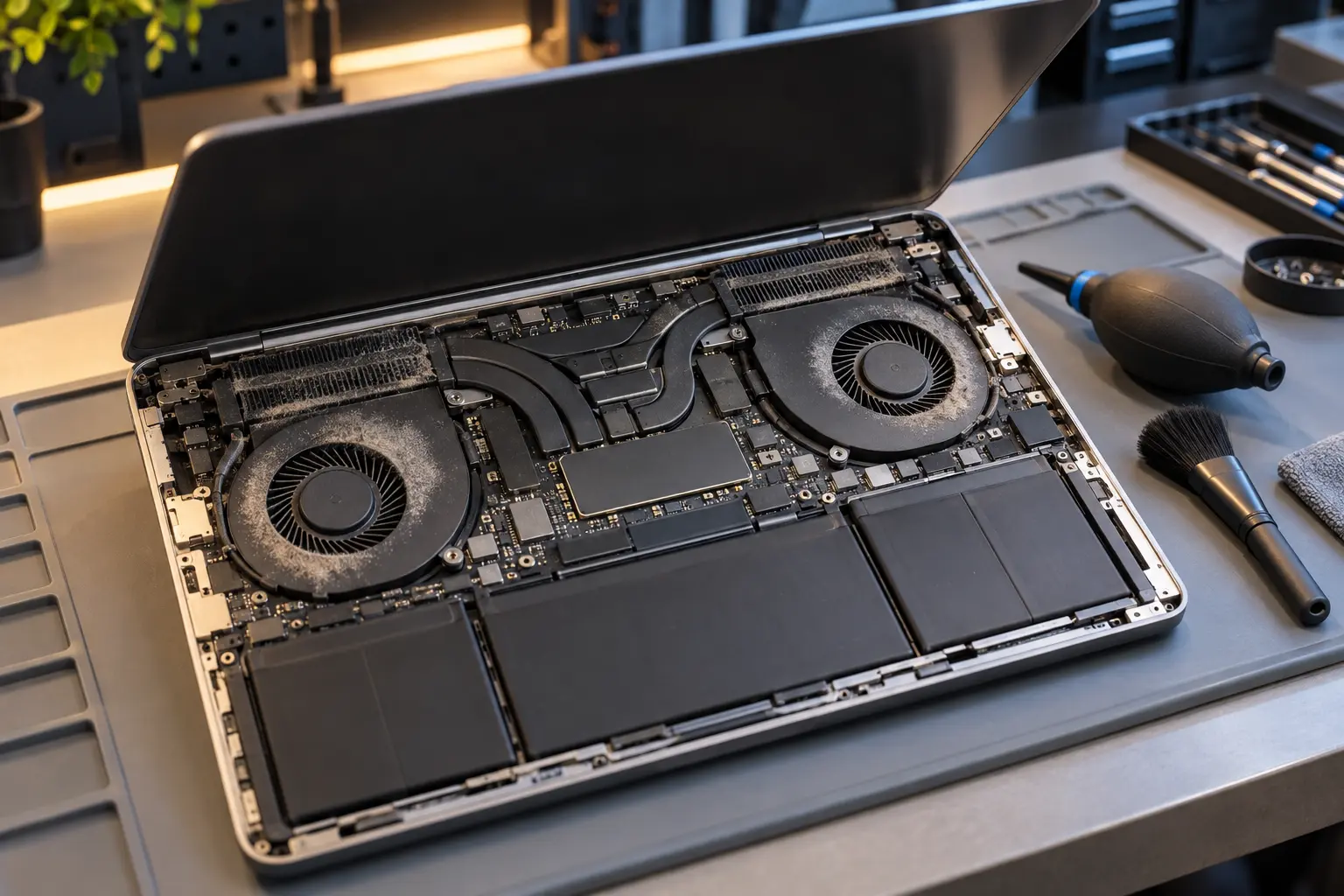
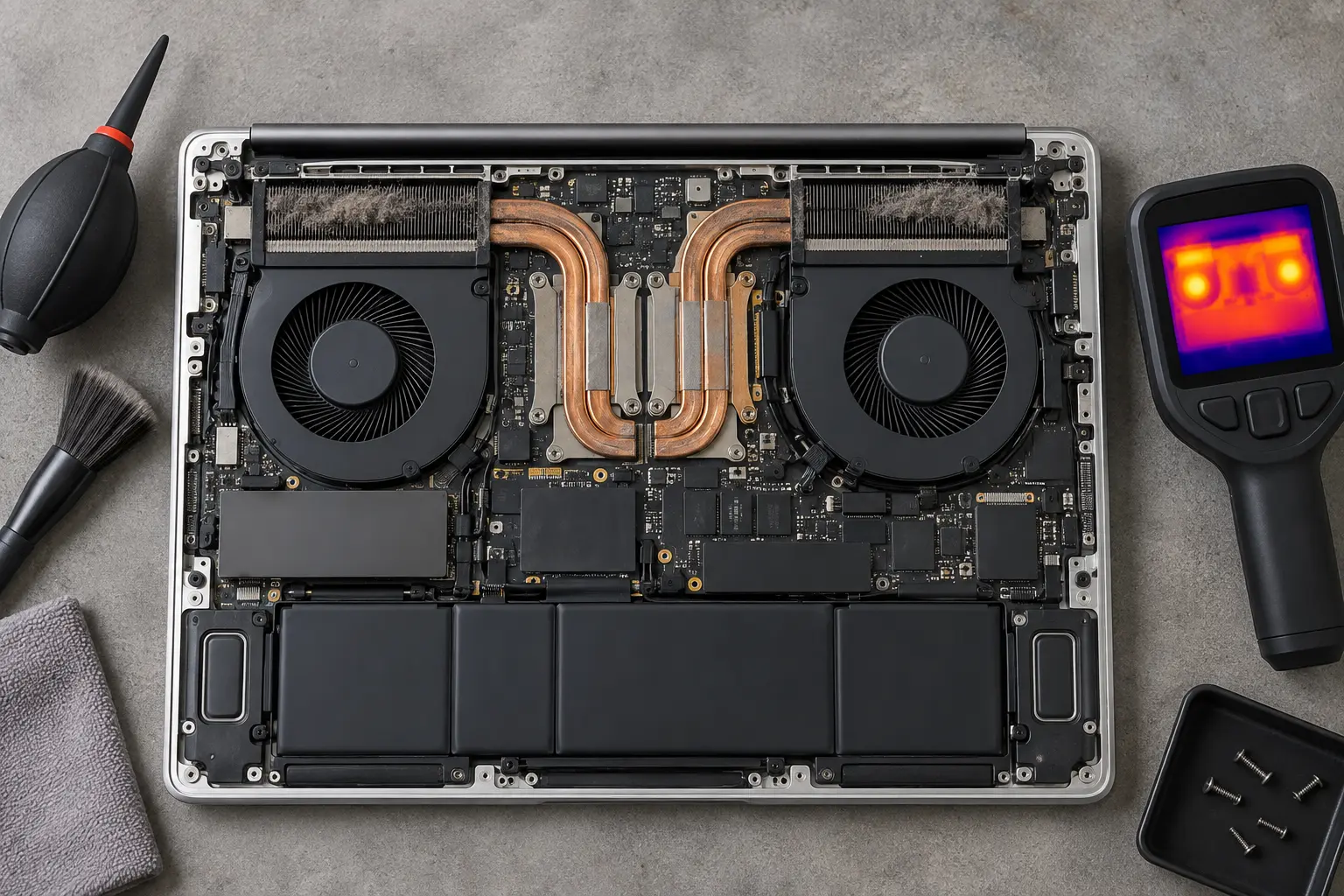
Dust buildup, worn fans, dried thermal material, damaged heat pipes and sensor faults can produce different patterns. Temperature logging and load testing are more useful than replacing thermal paste automatically.
When professional diagnosis saves time
Several Mac faults create the same visible symptom. A parts-only guess can add cost without solving the cause. Macbook Repair Shop in Tampa provides a free initial diagnostic and repair estimate for MacBook and iMac service. The shop is at 104 E Fletcher Ave, Tampa, FL 33612 and can be reached at (813) 461-4141.
Recommended next step: If the safe checks above do not identify a simple accessory or software issue, call Macbook Repair Shop before repeatedly powering, erasing or opening the device.