iMac SSD Upgrade: When It Is Worth It
Learn which slow iMacs benefit from solid-state storage and what the upgrade does not fix.
Stop and seek help: Disconnect power if you notice battery swelling, liquid exposure, smoke, a burning smell, severe heat or damaged charging contacts.
Identify the existing storage
A mechanical hard drive often causes slow startup and app launching. Check System Information and Disk Utility to understand whether the iMac uses a hard drive, SSD or Fusion Drive.
Measure the real bottleneck
An SSD helps storage-bound tasks but does not add RAM or repair thermal problems. Activity Monitor and drive-health testing help confirm that storage is the limiting component.
Choose the installation approach
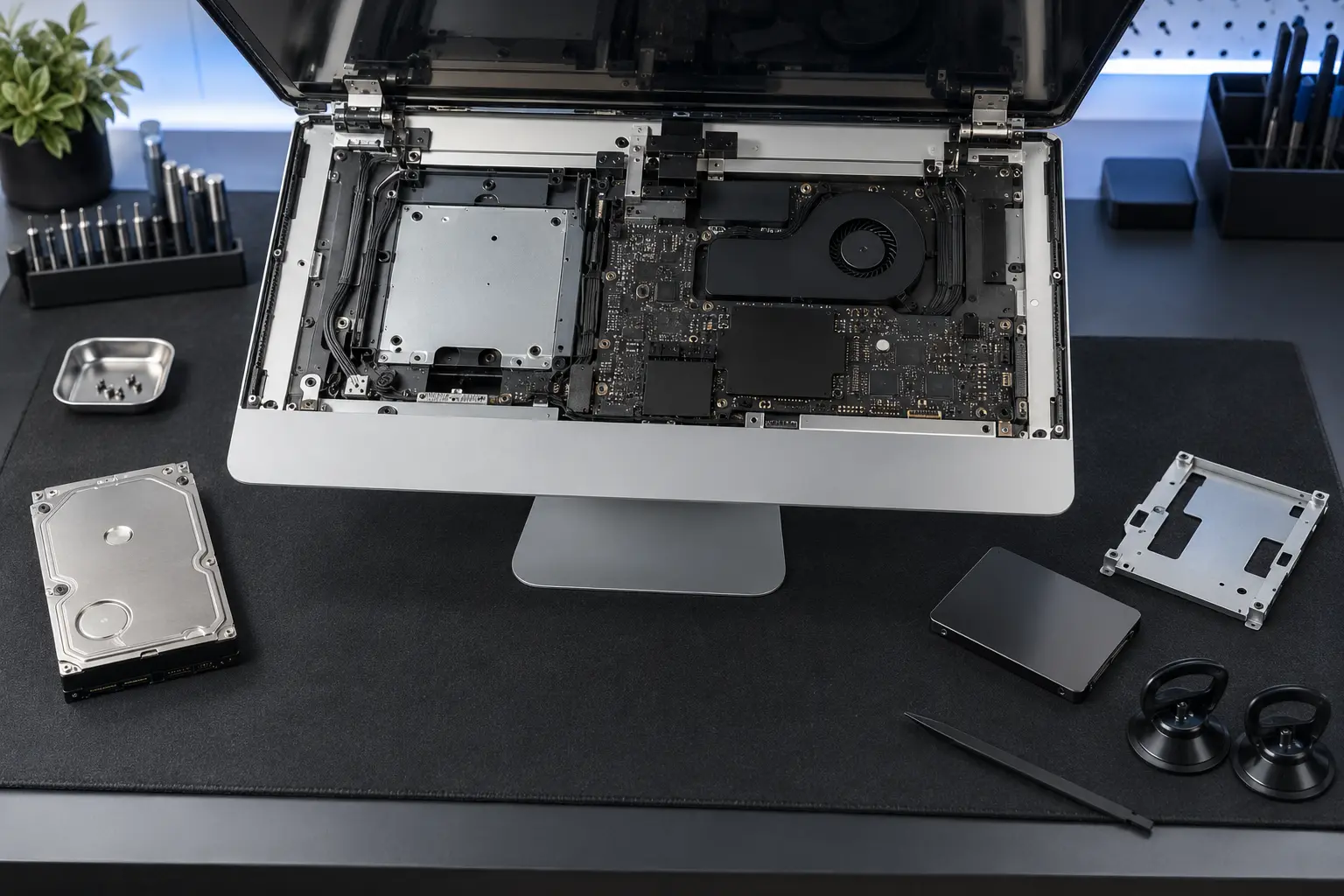
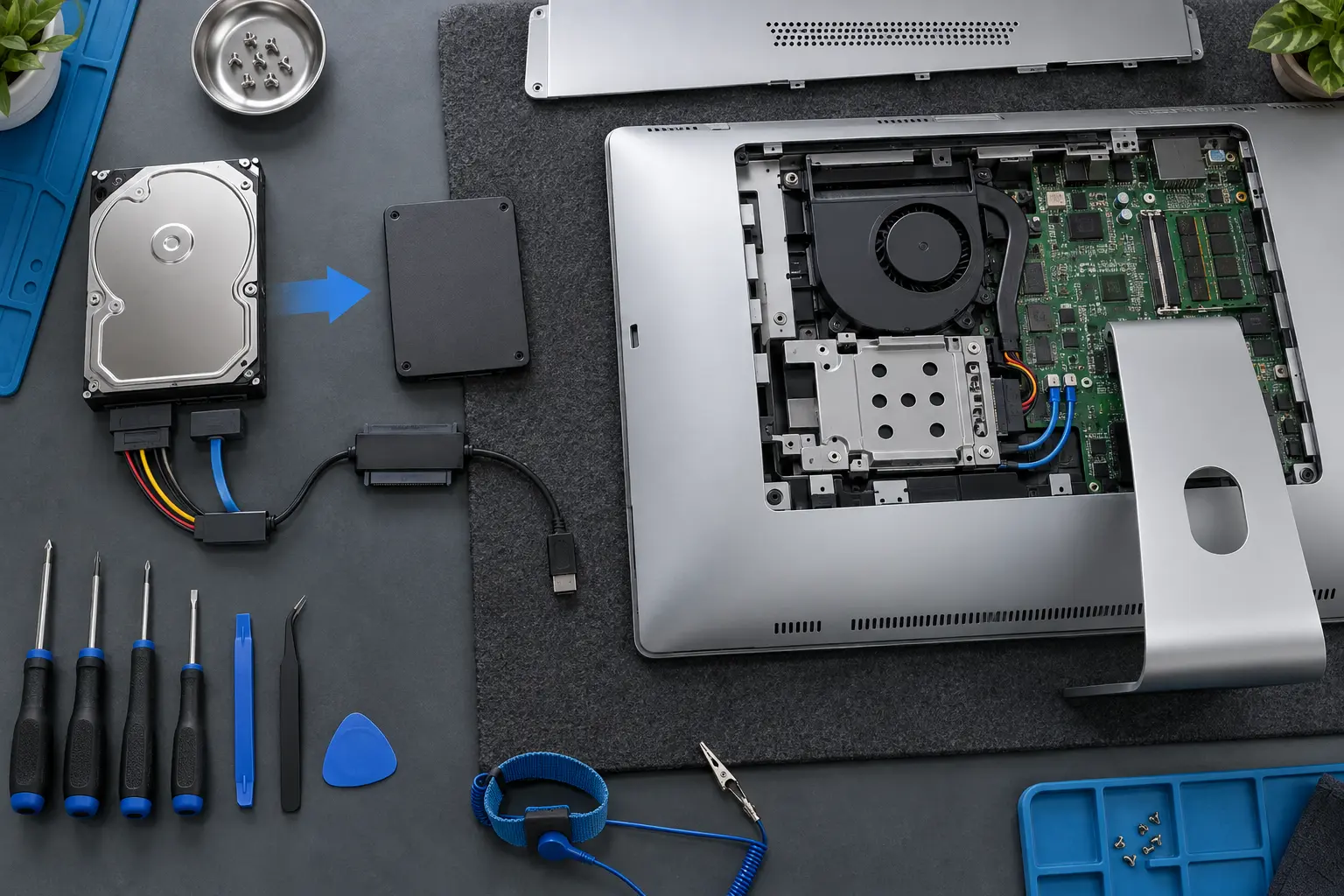
Internal SATA, blade-style and external Thunderbolt options vary by model. Internal display removal carries risk; external USB storage may not deliver the same behavior as a properly selected interface.
Plan migration and backup
Decide between cloning and a clean macOS installation. A readable, healthy source may be cloned. A failing source should be handled as a data-recovery problem rather than an ordinary upgrade.
When professional diagnosis saves time
Several Mac faults create the same visible symptom. A parts-only guess can add cost without solving the cause. Macbook Repair Shop in Tampa provides a free initial diagnostic and repair estimate for MacBook and iMac service. The shop is at 104 E Fletcher Ave, Tampa, FL 33612 and can be reached at (813) 461-4141.
Recommended next step: If the safe checks above do not identify a simple accessory or software issue, call Macbook Repair Shop before repeatedly powering, erasing or opening the device.